Before You Begin
Step 1: Select the Place Icon Tool
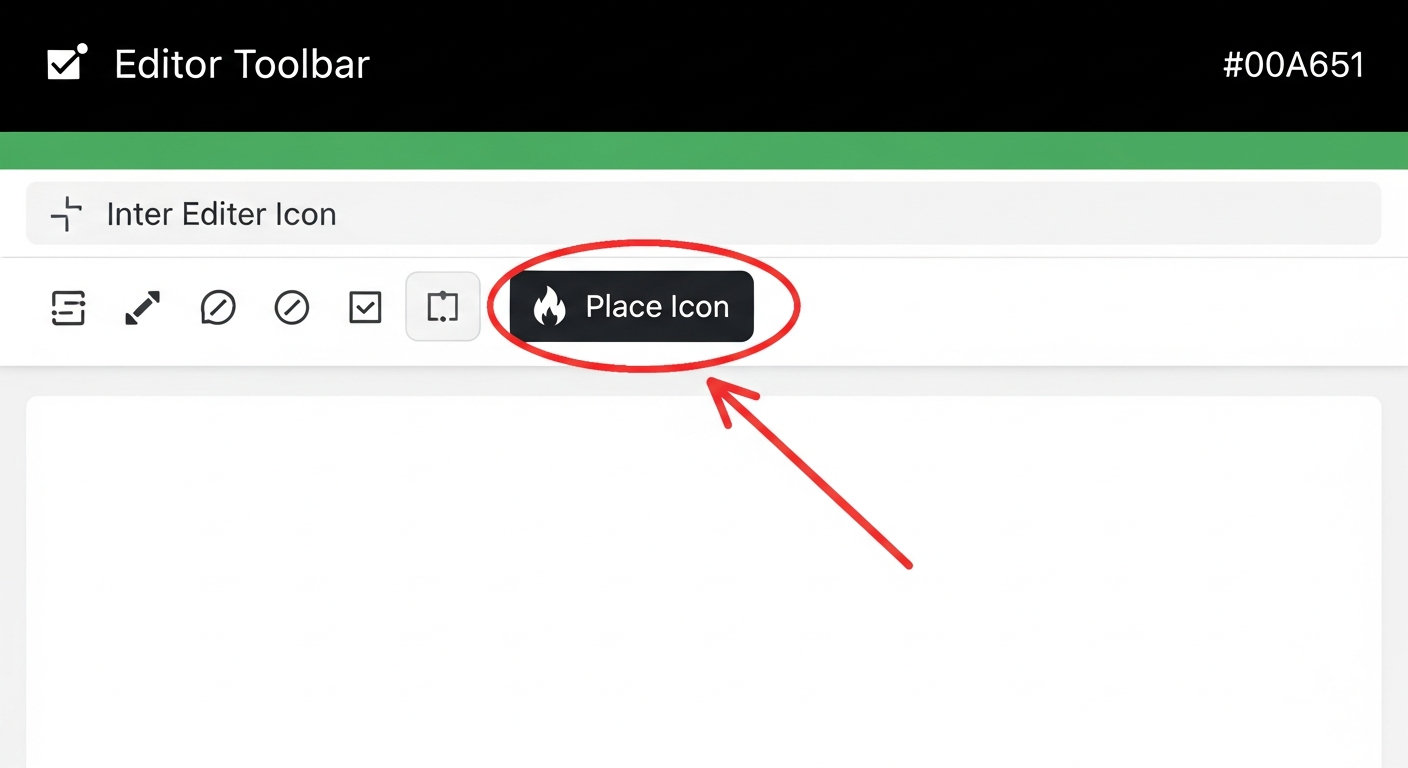
Click the "Place Icon" button in the toolbar. It has a flame icon. When active, the button turns green and the Icon Picker popup appears.
Step 2: Choose an Icon from the Library
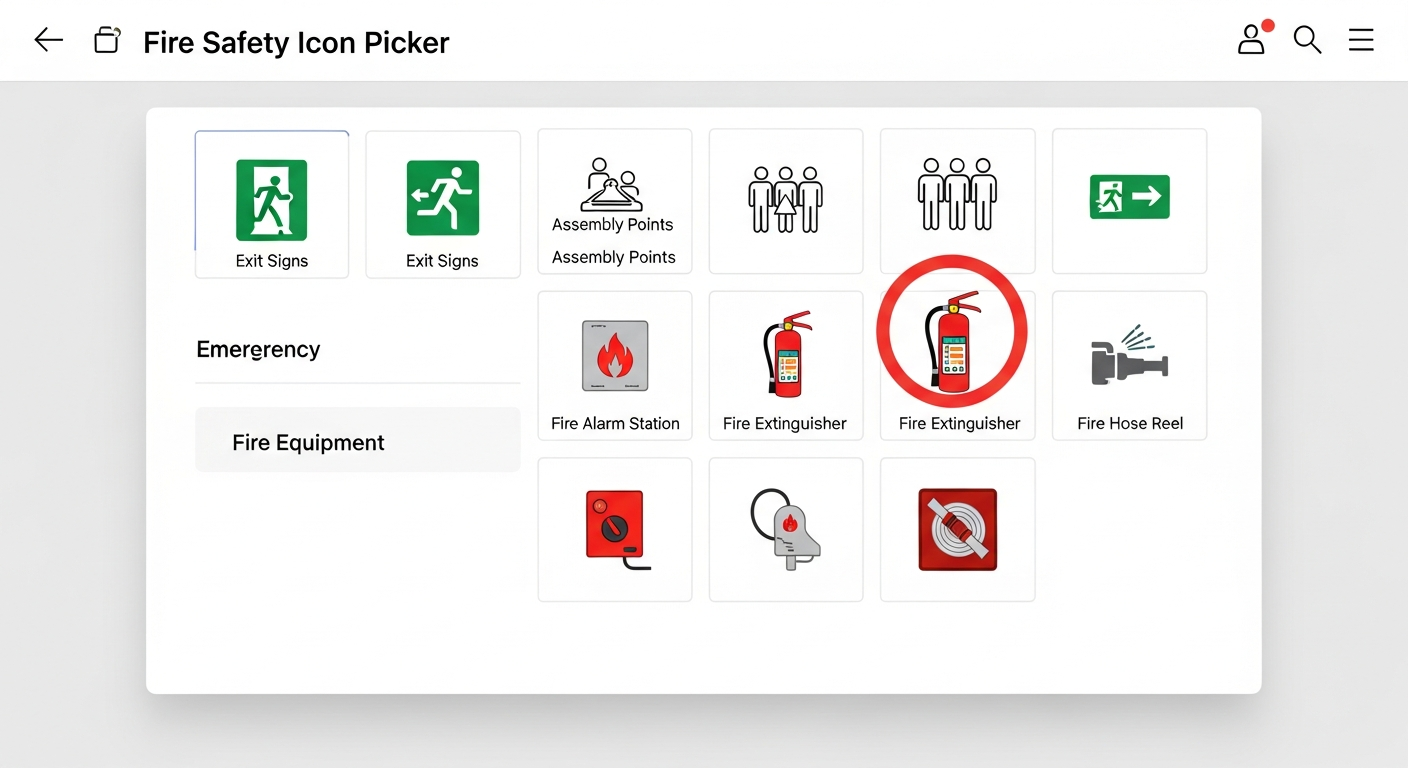
Browse through the icon categories: Emergency icons include exit signs and assembly points. Fire Equipment includes extinguishers, alarms, hose reels, and more.
Click on the icon you want to place. The selected icon becomes your active placement tool.
Step 3: Place Icons on Your Floor Plan
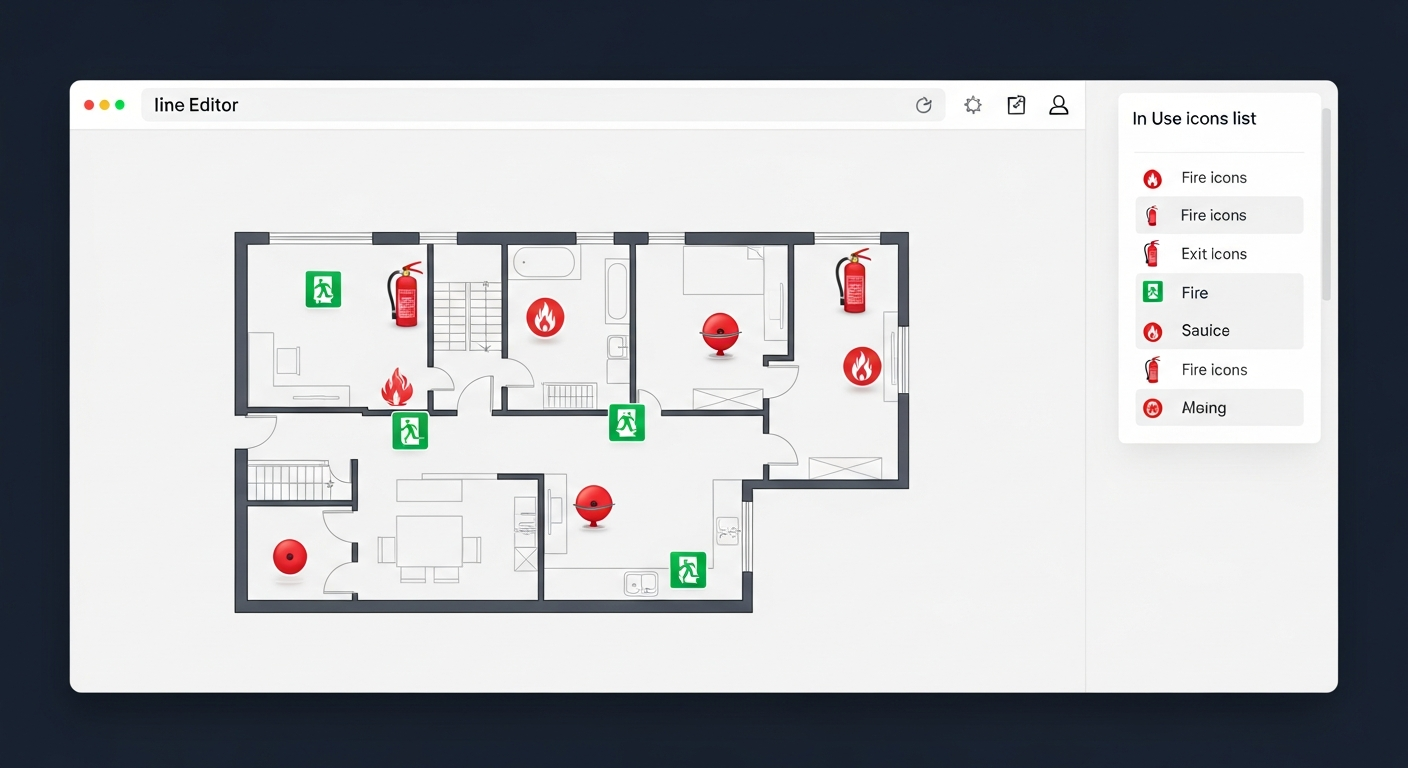
Click on the floor plan at the location where the safety equipment is installed. The icon appears at your click position.
Continue clicking to place more icons of the same type. Each click adds another instance.
To switch to a different icon type, click the Icon Picker again and select a new icon from the library.
Step 4: Adjust and Edit Icons
Use the Icon Size slider in the toolbar to adjust the size of newly placed icons. Typical sizes range from 30-50 for most floor plans.
Click on any placed icon to select it. Drag it to reposition, or press Delete/Backspace to remove it.
Icons you have placed automatically appear in the Map Key legend, so viewers know what each symbol represents.