How to Draw Emergency Exit Routes

Learn how to draw clear emergency exit routes on your floor plan using EvacPlan Generator's route drawing tool. This tutorial covers line styles, arrow directions, thickness options, and angle snapping.

TutorialsPublished: · Updated:

Before You Begin

This tutorial assumes you have already uploaded a PDF floorplan to your project. If you have not done so yet, follow the "How to Upload a PDF Floorplan" tutorial first. Evacuation routes are the green lines that show building occupants the path to follow to reach the nearest exit during an emergency. Clear, well-marked routes are a key requirement of most fire safety codes.

Step 1: Select the Draw Route Tool

Step 1: Select the Draw Route Tool
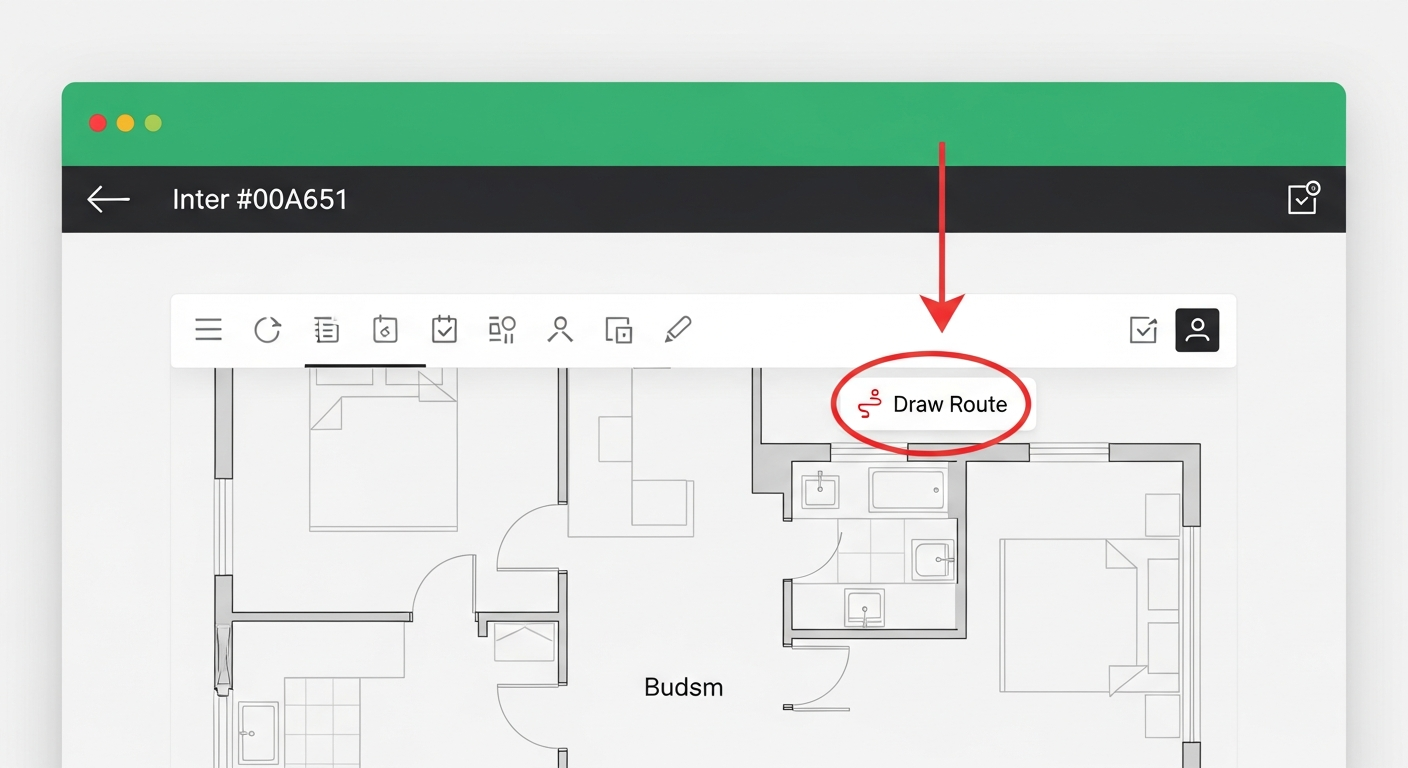
The Draw Route tool is located in the toolbar at the top of the editor.
1

Click the "Draw Route" button in the toolbar. It has a path/route icon. When active, the button turns green.

Tip: You can also press the Escape key at any time to deselect the current tool.
Step 1: Click the "Draw Route" button in the toolbar. It has a path/

Step 2: Draw Your Route Lines

Step 2: Draw Your Route Lines
With the Draw Route tool active, you can now click on the floor plan to create route points. Each click adds a new point, and a green line connects your points to form the evacuation path.
1

Click on the floor plan where you want the route to start. This is typically inside a room or at a corridor intersection.

Tip: Hold Shift while drawing to snap lines to 10-degree angles. This makes it easy to draw perfectly straight horizontal, vertical, or diagonal lines.
2

Continue clicking to add more points along the evacuation path. The line follows your clicks through corridors and toward exit doors.

Step 2: Continue clicking to add more points along the evacuation pa
3

Double-click or press Enter to finish the current route line. You can then start drawing another route from a different location.

Step 3: Customize Route Appearance

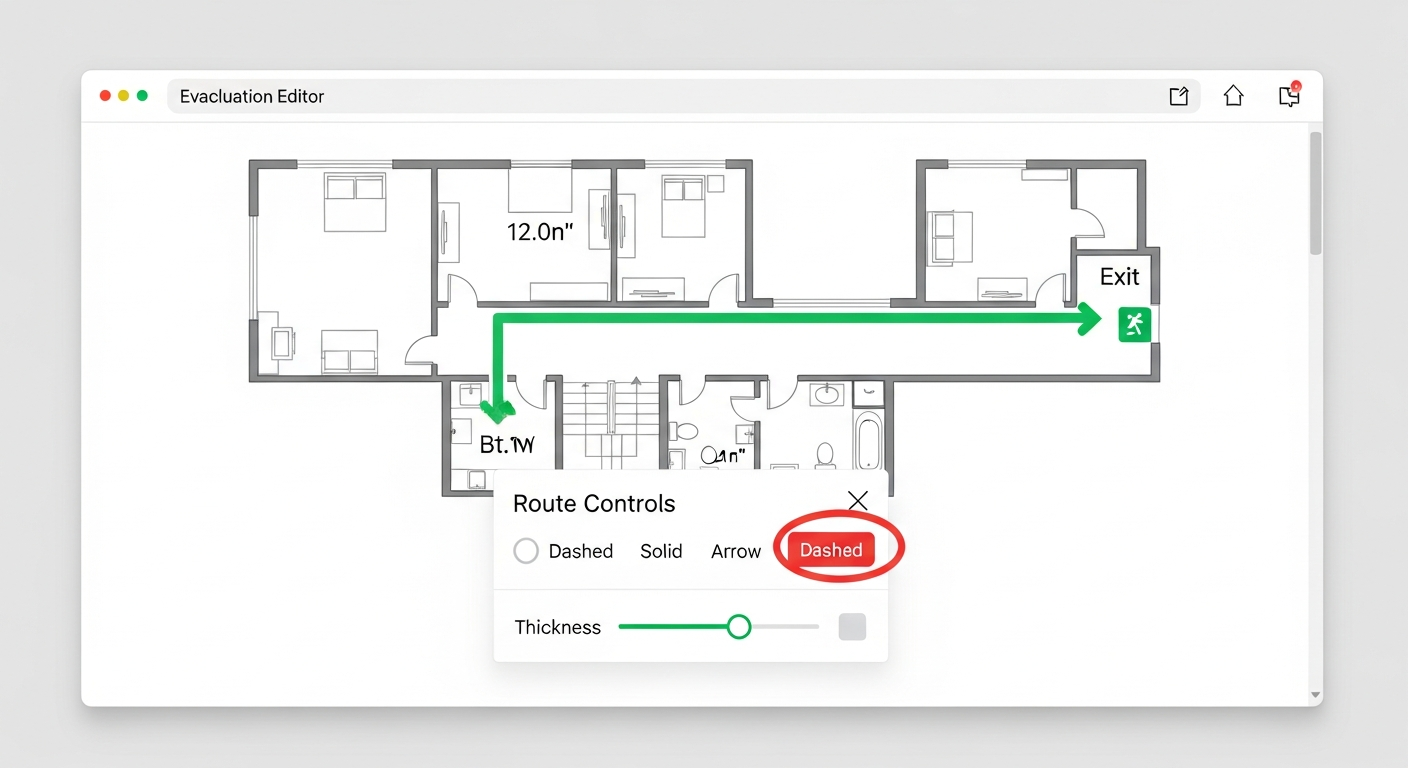
When the Draw Route tool is active, a controls panel appears at the bottom of the screen. Here you can customize how your routes look.
1

Use the Style buttons to switch between Dashed, Solid, or Arrow styles. Dashed lines with arrows are the most common format for evacuation routes.

Tip: Arrow style adds directional arrowheads to show occupants which way to walk. The arrow size adjusts proportionally to the line thickness.
2

Adjust the Thickness slider to make lines thinner or thicker. A thickness of 3-5 works well for most floor plans.

Step 4: Edit Existing Routes

You can modify routes after drawing them.
1

Click on any existing route line to select it. A highlight appears around the selected route.

Tip: You can drag a selected route to reposition it on the floor plan.
2

Press Delete or Backspace to remove a selected route. You can also click the Delete button that appears in the toolbar when a route is selected.

3

Use Ctrl+Z (or Cmd+Z on Mac) to undo any changes. Ctrl+Y redoes them.

Tips for Effective Evacuation Routes
Tips for Effective Evacuation Routes
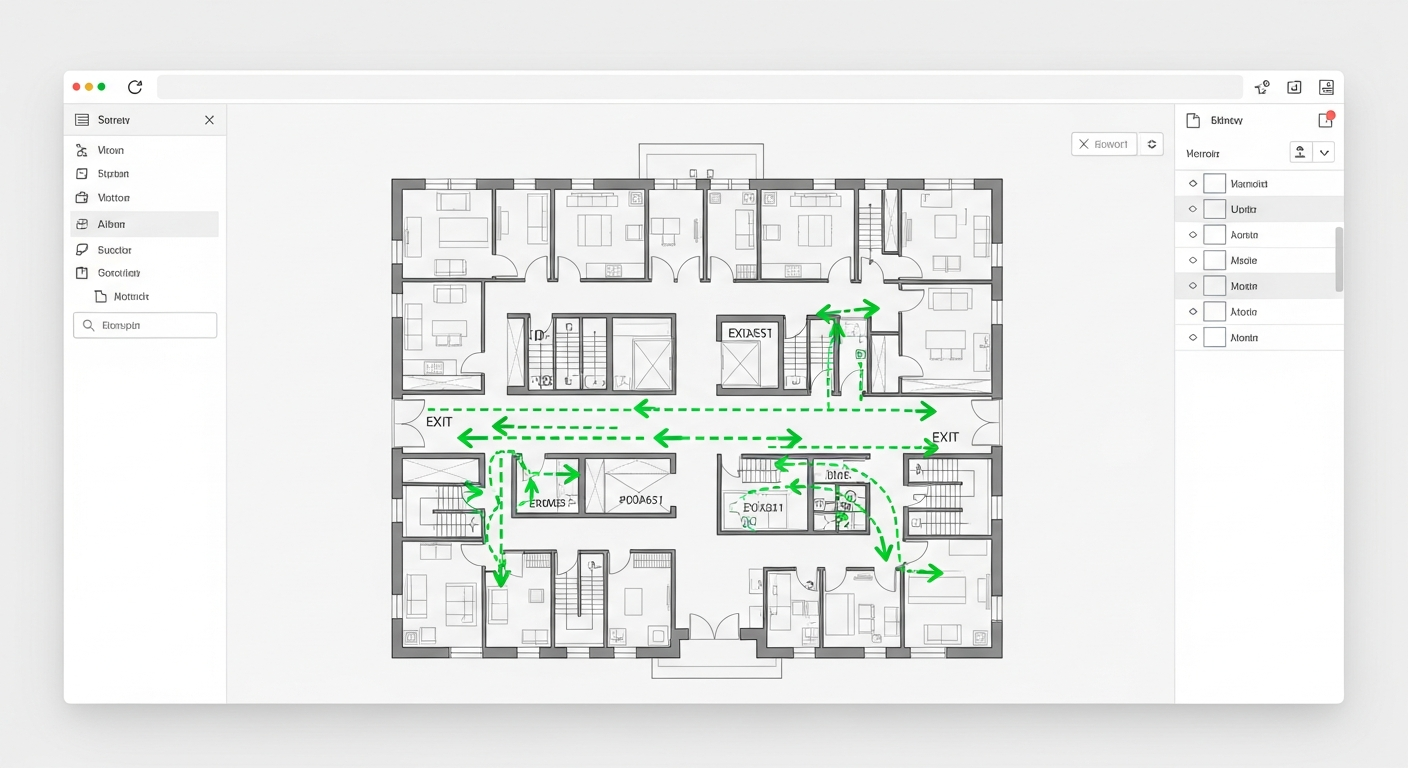
When drawing evacuation routes, keep these best practices in mind: • Always show at least two exit paths from each area of the building • Routes should follow the shortest safe path to the nearest exit • Avoid routing through areas where hazardous materials are stored • Use arrows to clearly indicate the direction of travel • Make sure routes connect to actual exit doors marked on the plan • Keep route lines clean and easy to follow — avoid unnecessary curves or crossings • Use consistent line styles throughout the entire plan

Ready to get started?

Create your first professional evacuation plan in minutes. No software to install, no credit card required.