How to Export Your Evacuation Plan as PDF

Learn how to export your completed evacuation plan as a professional, print-ready PDF. This tutorial covers paper size options, what gets included in the export, and how to download your finished plans.

TutorialsPublished: · Updated:

Before You Export

Before exporting, make sure your evacuation plan is complete. Check that you have: • Drawn all emergency exit routes showing the path to each exit • Placed fire safety icons at the correct locations (extinguishers, alarms, exits) • Added a "You Are Here" marker at the posting location • Reviewed the Map Key legend to ensure all symbols are listed • Checked that the header text is correct for your building or floor Your work is automatically saved, so you do not need to manually save before exporting.

Step 1: Click Export PDF

Step 1: Click Export PDF
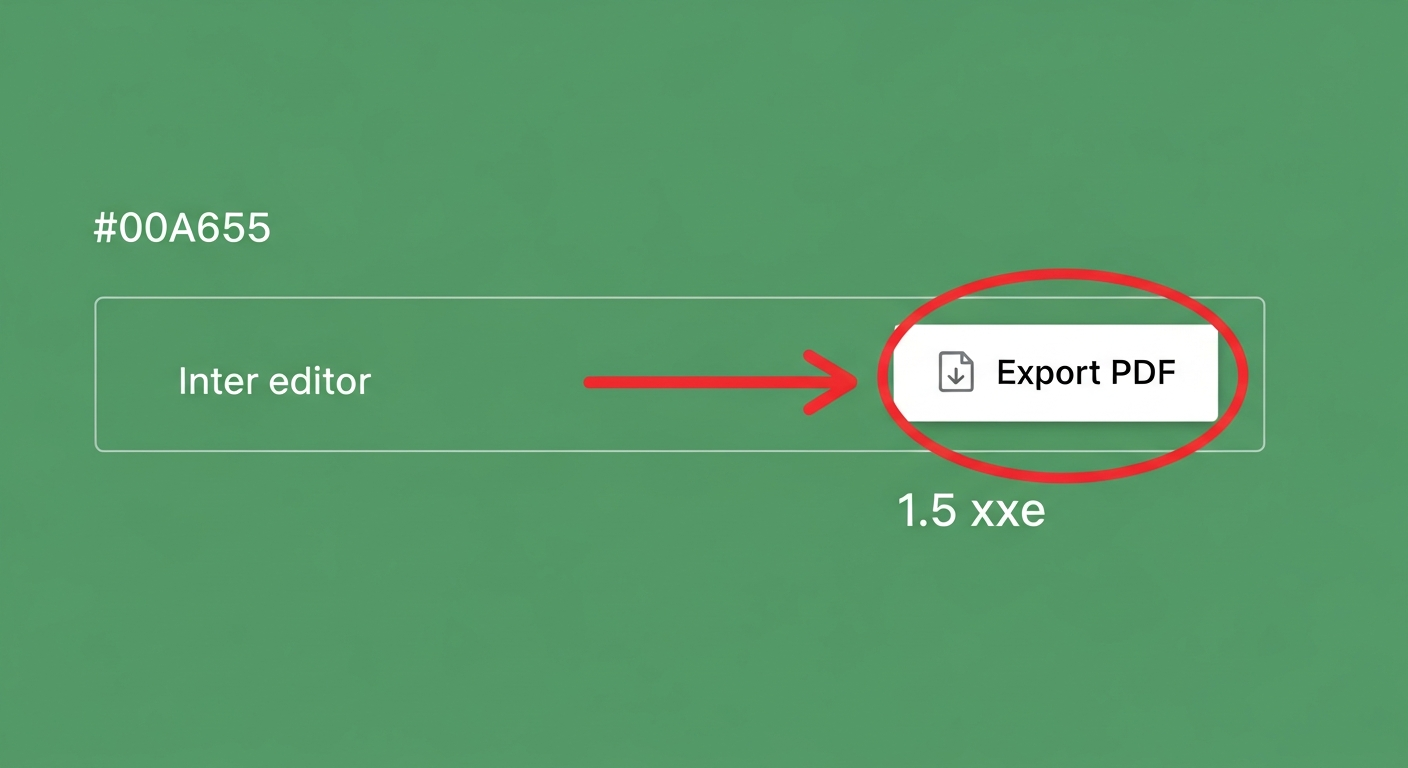
The Export PDF button is located in the top toolbar of the editor.
1

Click the "Export PDF" button in the toolbar. It has a download icon.

Tip: You need to have at least one page in your project to export. The button is disabled if no pages exist.
Step 1: Click the "Export PDF" button in the toolbar. It has a downl

Step 2: Choose Your Settings

Step 2: Choose Your Settings
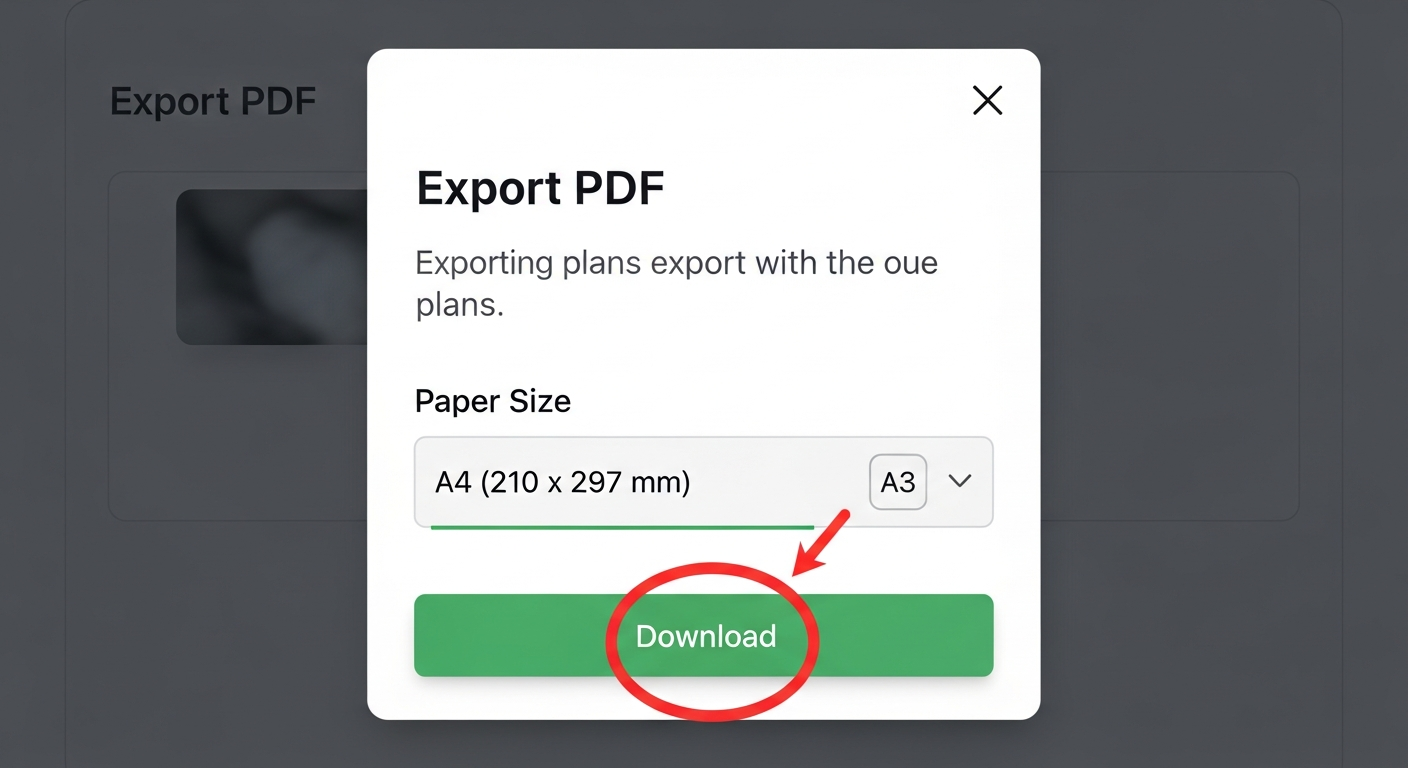
An export dialog appears where you can configure the output.
1

Select your paper size from the dropdown. Choose A4 (210 x 297 mm) for standard office printing, or A3 (297 x 420 mm) for larger, more detailed plans.

Tip: A3 is recommended for plans that will be posted on walls, as the larger size makes routes and icons easier to see from a distance.
Step 1: Select your paper size from the dropdown. Choose A4 (210 x 2
2

Click the "Download" button to start the export process. A progress indicator shows you the export status.

Step 3: Download Your PDF

The export process takes a few moments depending on how many pages you have.
1

Wait for the export to complete. The system saves your work, renders any pages with layer or simplify filters, and builds the final PDF.

Tip: If you have applied Simplify filters or toggled Layer visibility, those settings are applied to the exported PDF automatically.
2

Your browser will download the finished PDF file. If your project has multiple floorplans, you will receive a ZIP file containing one PDF per floorplan.

3

Open the downloaded PDF to review it. The export includes your floor plan, all routes and icons, the Map Key legend, a header bar, and the evacuation plan branding.

What the Exported PDF Includes

Your exported PDF is a complete, print-ready evacuation plan that includes: • Your original floor plan as the background • All emergency exit route lines with arrows and styling • All fire safety icons in their placed positions • The "You Are Here" marker (if placed) • A Map Key legend showing what each symbol means • A customizable header bar with your building or floor name • Professional branding at the bottom of the page The PDF is designed to look professional when printed and posted. Simply print it at the paper size you selected and post it in the building at the location matching your "You Are Here" marker.

Tips for Printing and Posting

Follow these tips for the best results: • Print in color for maximum clarity — the green routes and colored icons are much easier to read in color • Use a protective frame or lamination to keep posted plans in good condition • Post plans at eye level near elevators, stairwells, and main corridors • Each floor should have multiple posted plans at key locations • Review and update your plans whenever the building layout changes • Keep a digital copy on file for easy reprinting and regulatory inspections

Ready to get started?

Create your first professional evacuation plan in minutes. No software to install, no credit card required.